Straven Shop
Shop online guide
Get started
- Open the browser demo. Choose Explore sample shop to practice or Start an empty shop to build your own menu.
- In an empty shop, open Setup → Edit shop details. Set your shop name, currency, and time zone. Select Save shop details before recording your first sale.
- For offline use on desktop, select Download desktop preview and open the saved file in Chrome or Edge. For the browser demo, let it finish loading online before you go offline.
Set up your menu
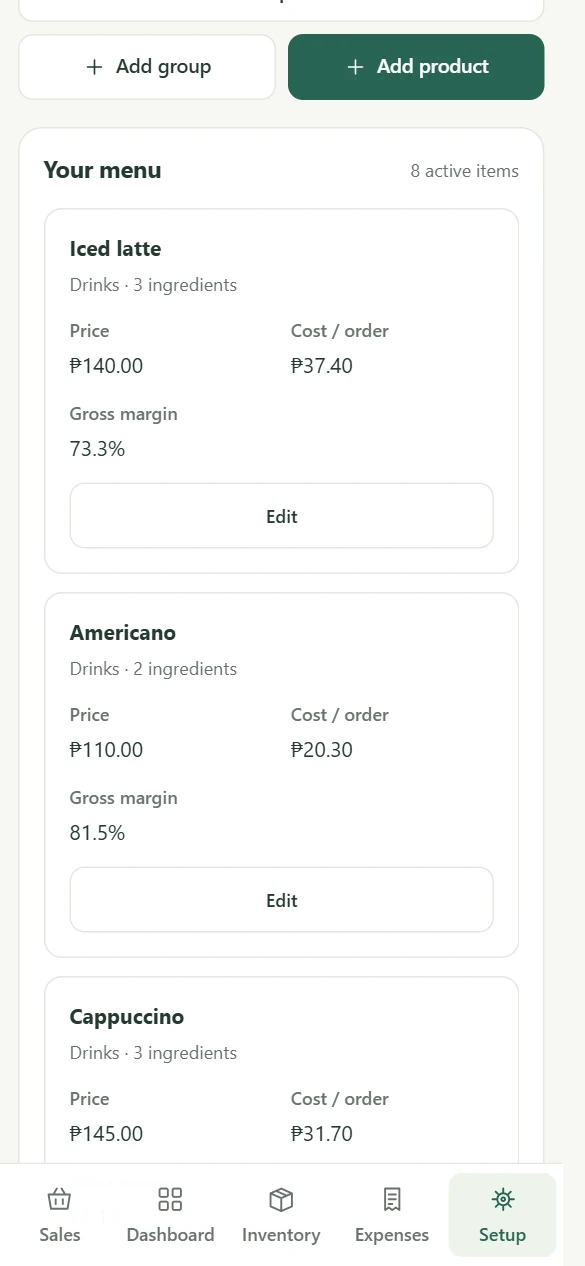
- In Setup, choose Add group, enter a name such as Drinks, and select Save group.
- Choose Add product. Enter the product name, group, and selling price. You can also upload a product photo.
- Choose how to cost the item.
- To try the pricing suggestion, set Target gross margin and select Use suggested price. Choose Save product. The item appears in its group on the Sales page.
View the Setup screen
Record a sale
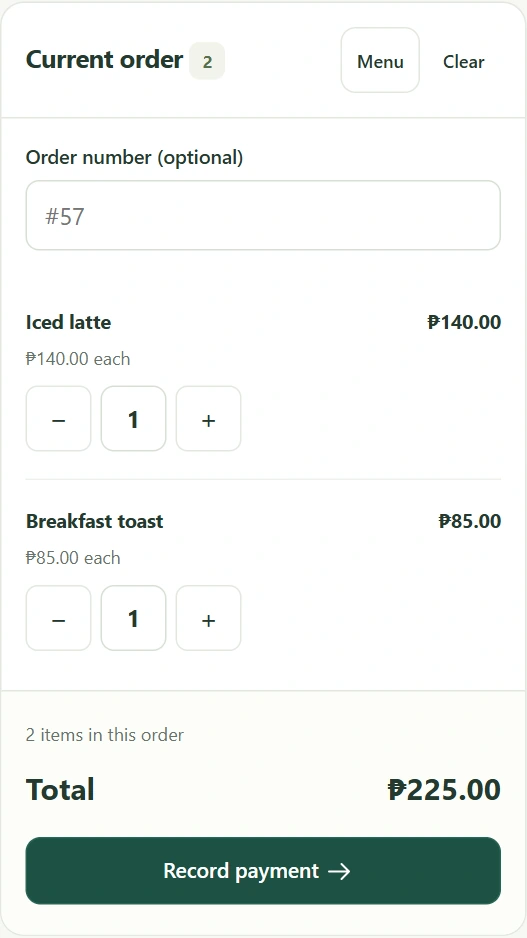
- In Sales, select a group and tap an item. Use its quantity controls to adjust the order. Enter an optional order number or leave it blank for automatic numbering.
- Check the total in Current order. Select Record payment, then Cash, Card, or E-wallet. Collect payment separately. For cash, enter the amount received and check the change.
- Choose Complete sale. The receipt shows the recorded total, and the recipe ingredients are deducted from inventory. Choose New order to return to the counter.
View the Sales screen
Serve an order
- Choose Pending orders to see each order number, its items, and quantities. Select Open customer display for a separate window. Move it to a connected screen and select Full screen. The display updates automatically, including offline.
- In the cashier’s Pending orders list, find the ticket, choose Mark served, then Confirm served. To leave the order on the display, choose Cancel.
Find a receipt
- Open Sales → Orders. Choose a period, select Apply for a custom date or range, then select the order number.
Receive stock and log waste
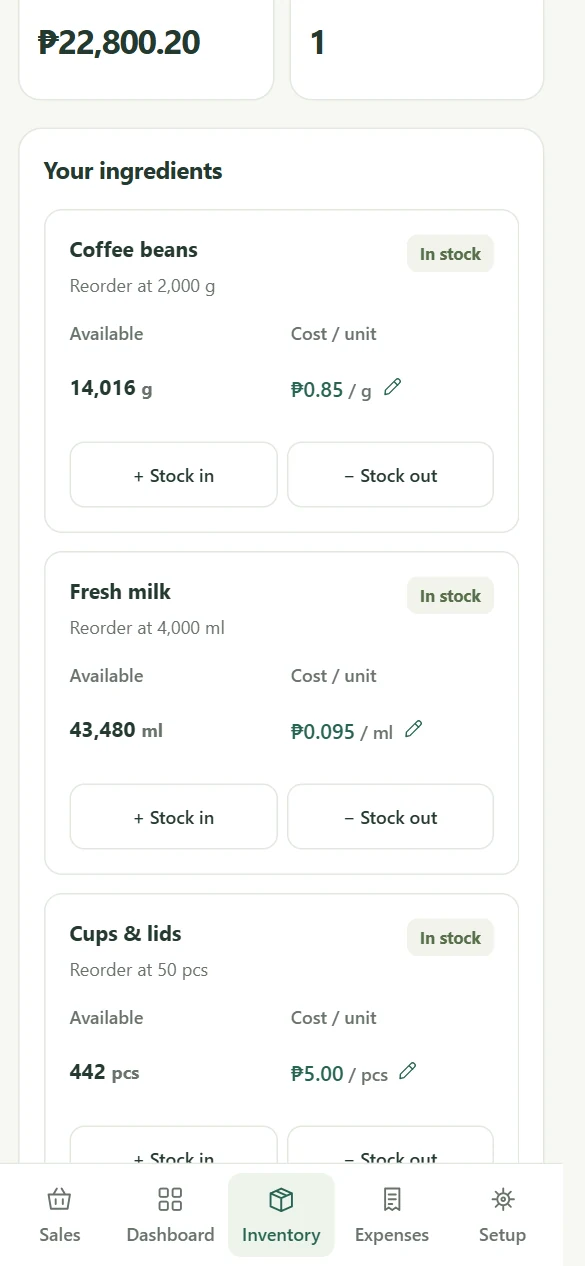
- For a new ingredient, open Inventory → Ingredient. Choose grams, milliliters, or pieces. Enter the opening quantity, cost per base unit, and low-stock threshold, then select Save ingredient.
- To receive a delivery, select Stock in beside the ingredient. Enter the quantity and total purchase cost, check whether it has been paid, and select Receive stock.
- To record spoiled milk, select Stock out beside Milk, enter the amount in its displayed unit, choose Expired / spoiled, and select Record stock out. For a transfer, choose Moved / transferred and enter the destination.
- Check the updated available quantity. Open History to see the reason and quantity recorded.
View the Inventory screen
Edit ingredient cost
- In Inventory, select the ingredient’s price under Cost / unit, enter the new cost, and choose Save cost. This updates the stock estimate and recipe costs for future sales.
Record an operating expense
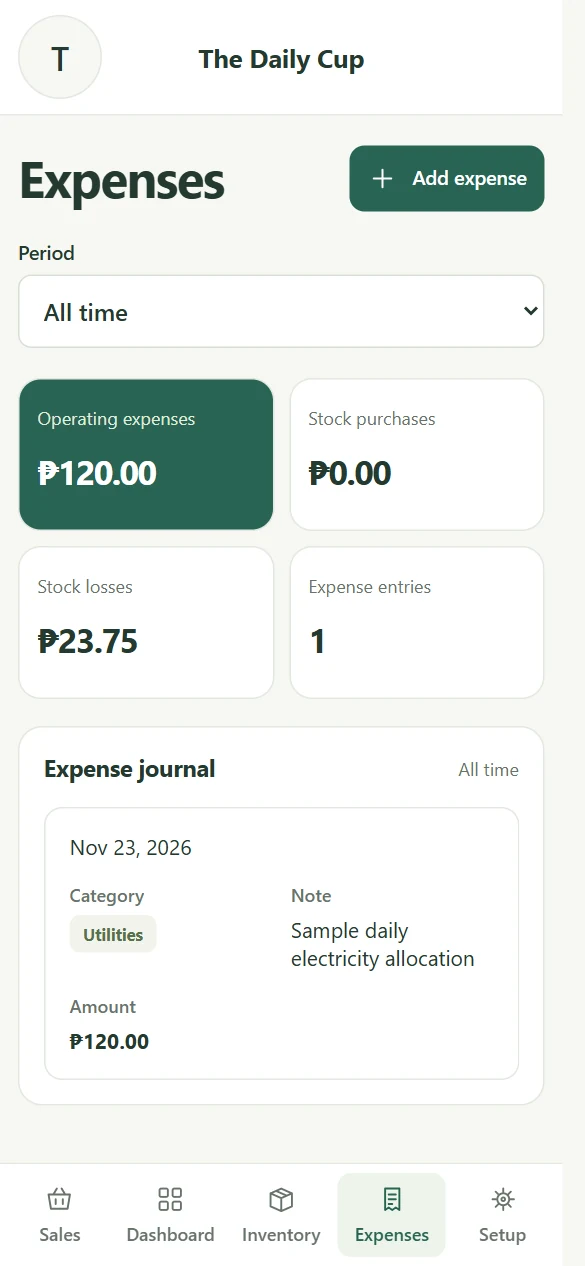
- Open Expenses → Add expense. Enter the date, amount, and category. Add a note to identify the purchase, then choose Save expense.
- Choose Specific date or Date range under Period, enter the dates, and select Apply. The expense journal and totals reflect that period.
- Record ingredient purchases once through Inventory → Stock in. Adding the same purchase to Expenses would count it again.
View the Expenses screen
Review a day’s earnings
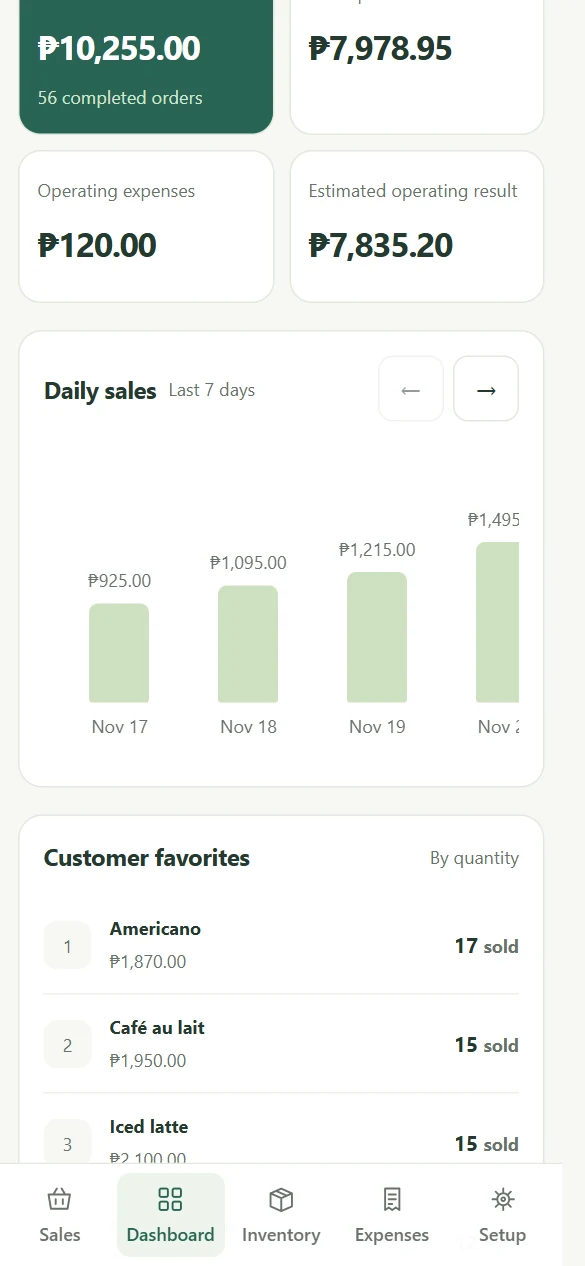
- In Dashboard, choose Today or select Specific date, enter a day, and select Apply. Use Date range to review several days together.
- Read Total sales for completed orders. Gross profit accounts for the cost of items sold. Estimated operating result also accounts for recorded operating expenses and stock losses.
- Use Customer favorites and Least sold to compare items by quantity over the selected period.
View the Dashboard screen
Back up or move your shop
With a purchased copy, open My account and select Connect Google Drive. Before changing devices, wait for Backed up to Google Drive in Setup and close the old checkout. Sign in with the same Google account on your new device and open Straven Shop from your library. Your latest synced records load automatically. Offline sales stay on the original device until it reconnects with the app open.
Manual backup or preview
- In Setup → Download backup, save the JSON file somewhere you can retrieve it. The preview stores records on this device. You can manually copy the backup to your Google Drive.
- To move checkout, first select Pause for handoff → Pause checkout on the old device. Download a fresh backup after pausing and transfer it to the new device.
- On the new device, choose Restore a Straven backup on the welcome screen or Restore backup in Setup. Choose the file and check the shop name, record counts, and last-saved time before selecting Replace shop with this backup.
- On the new device, open Setup and select Resume checkout → Resume on this device. Keep the old checkout paused. To retrieve the records that were on this device before the restore, select Download recovery copy.